HOWTO: Use RStudio on OnDemand
This page outlines how to use the RStudio Server interactive app on OnDemand.
Launching RStudio Server App
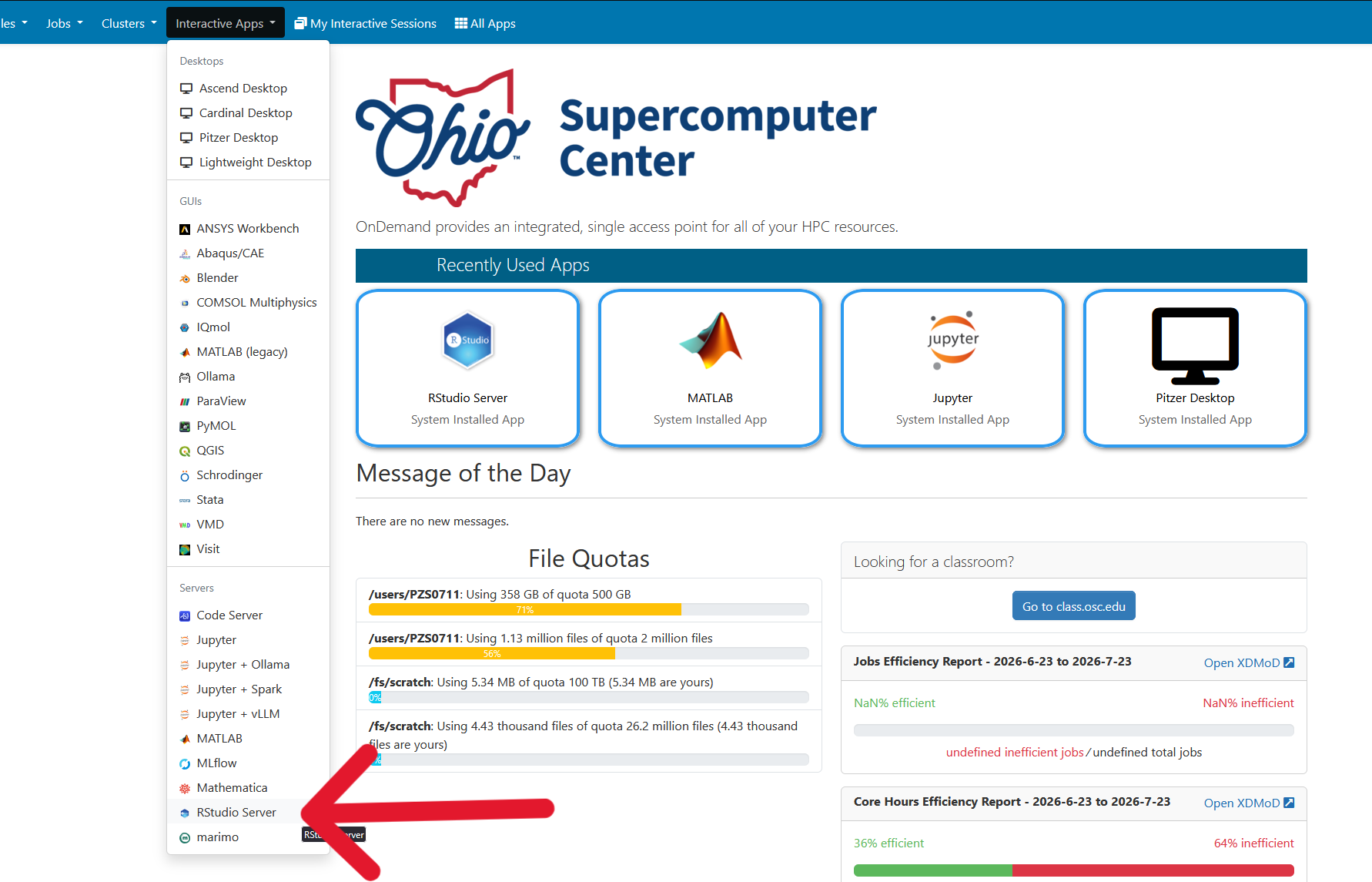
Log on to https://ondemand.osc.edu/ with your OSC credentials. Choose RStudio Server under the InteractiveApps option.
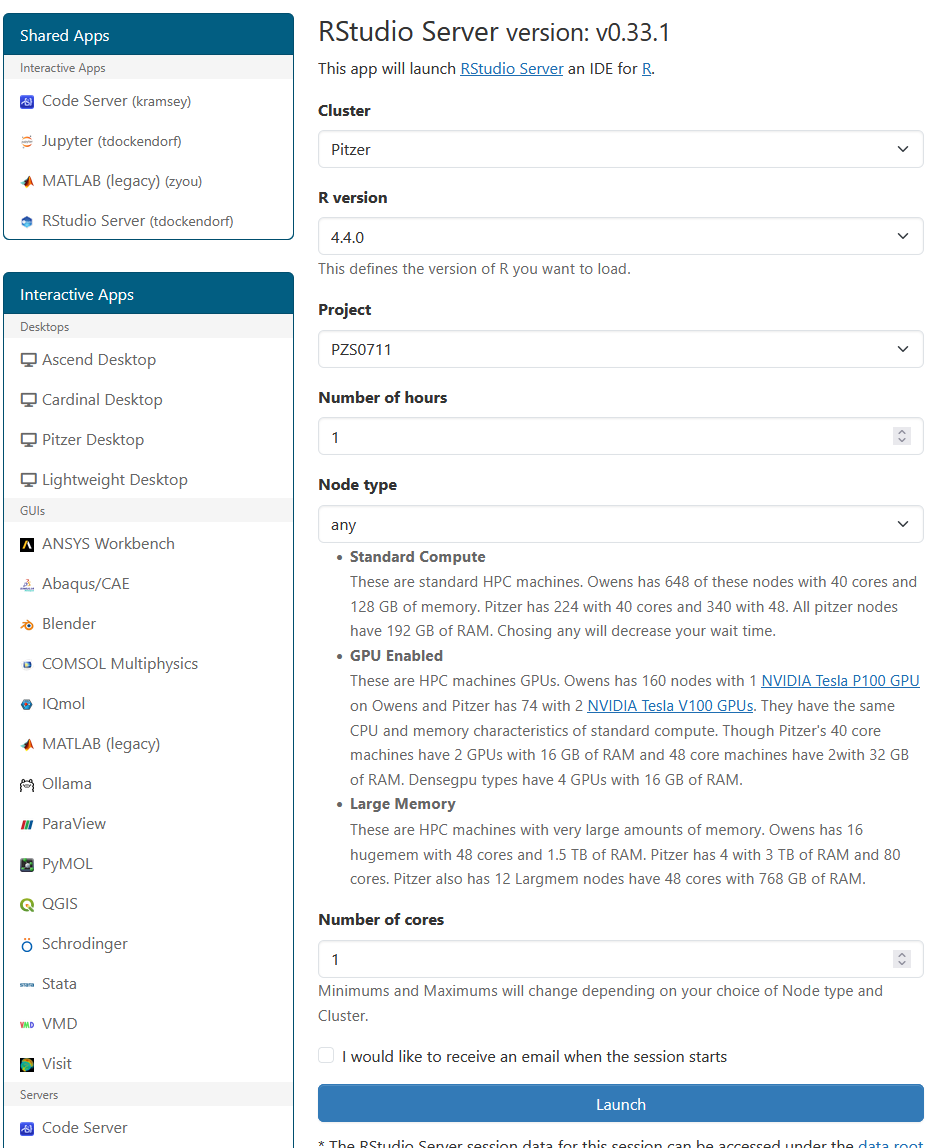
Provide job submission parameters then click Launch.
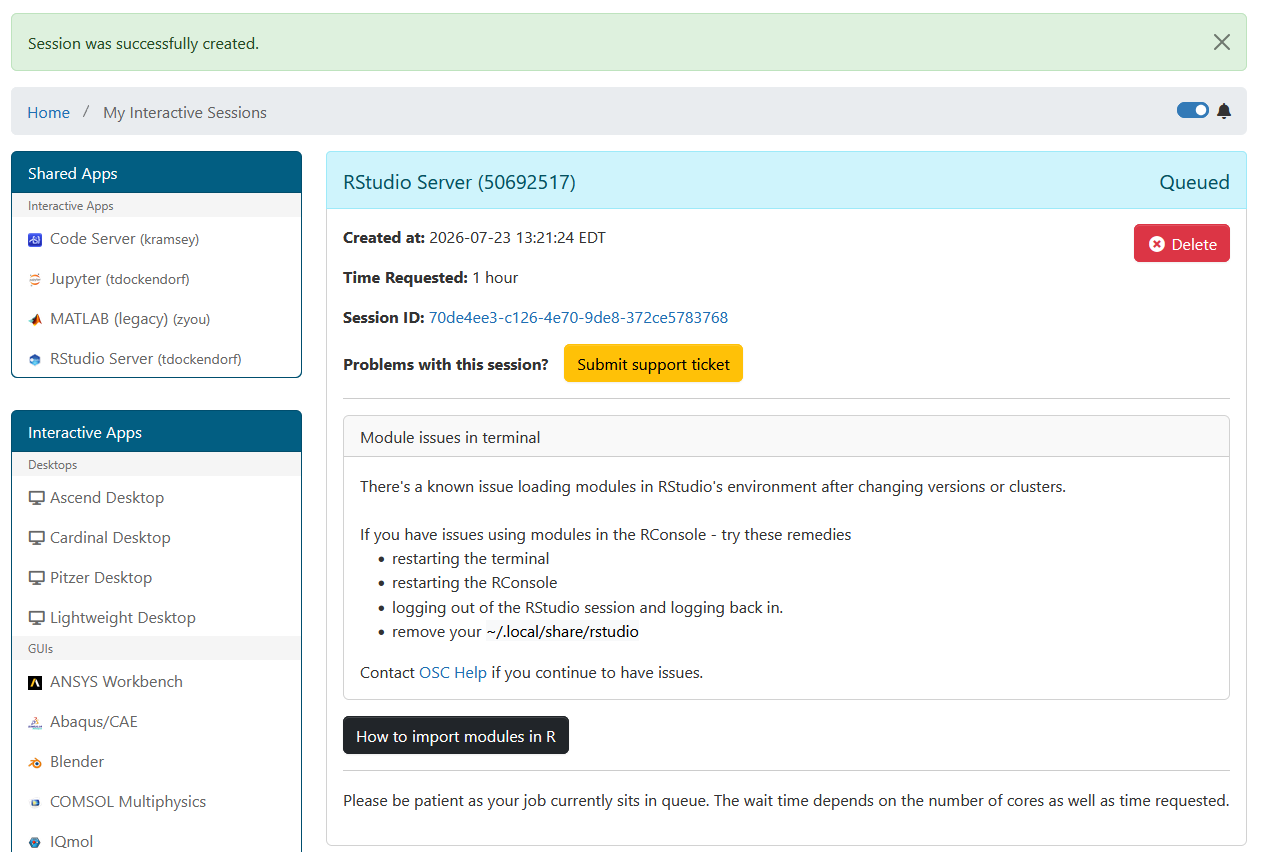
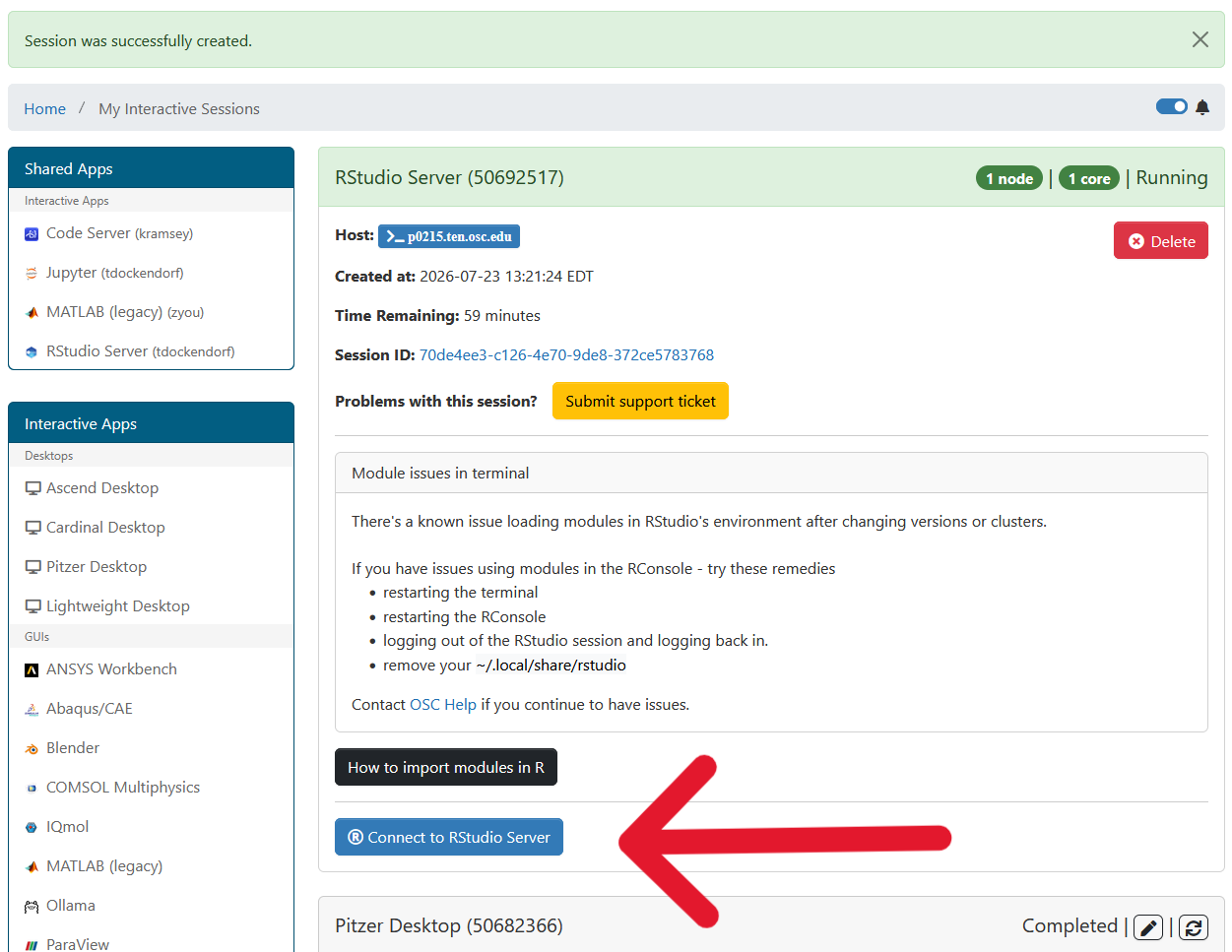
The next page shows the status of your job either as Queued or Starting or Running. Your job may sit in a queue for a few minutes depending on cluster load and resources requested.
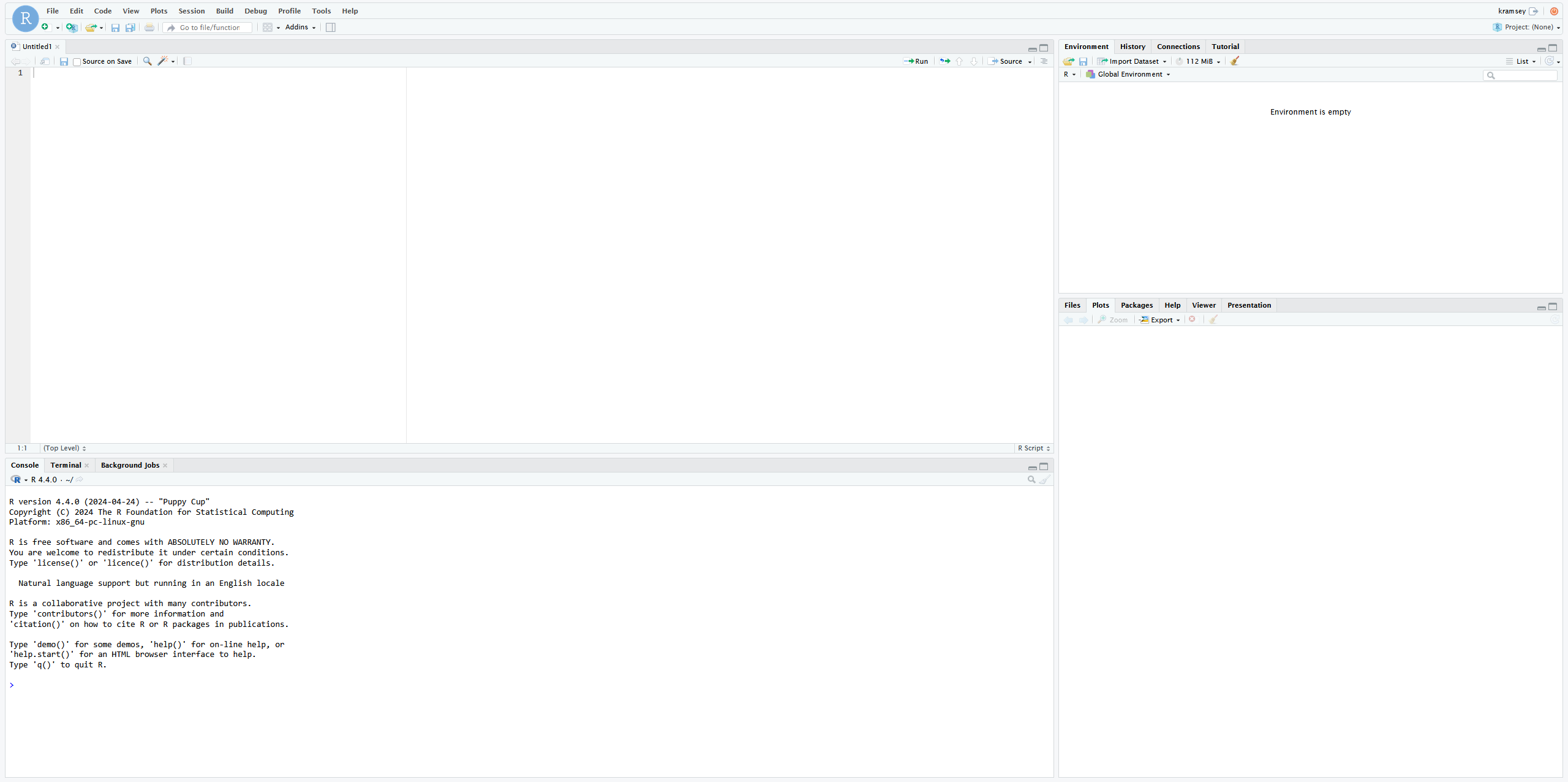
When the job is ready, please click on Connect to RStudio Server. This will now launch an RStudio window.
RStudio App Usage
With the app open, you will be able to access your home directory in the bottom right pane, edit R scripts, and interact with the R console and Linux terminal. For a comprehensive guide to RStudio's interface, see the RStudio IDE User Guide.